Documentation

Invite a new user

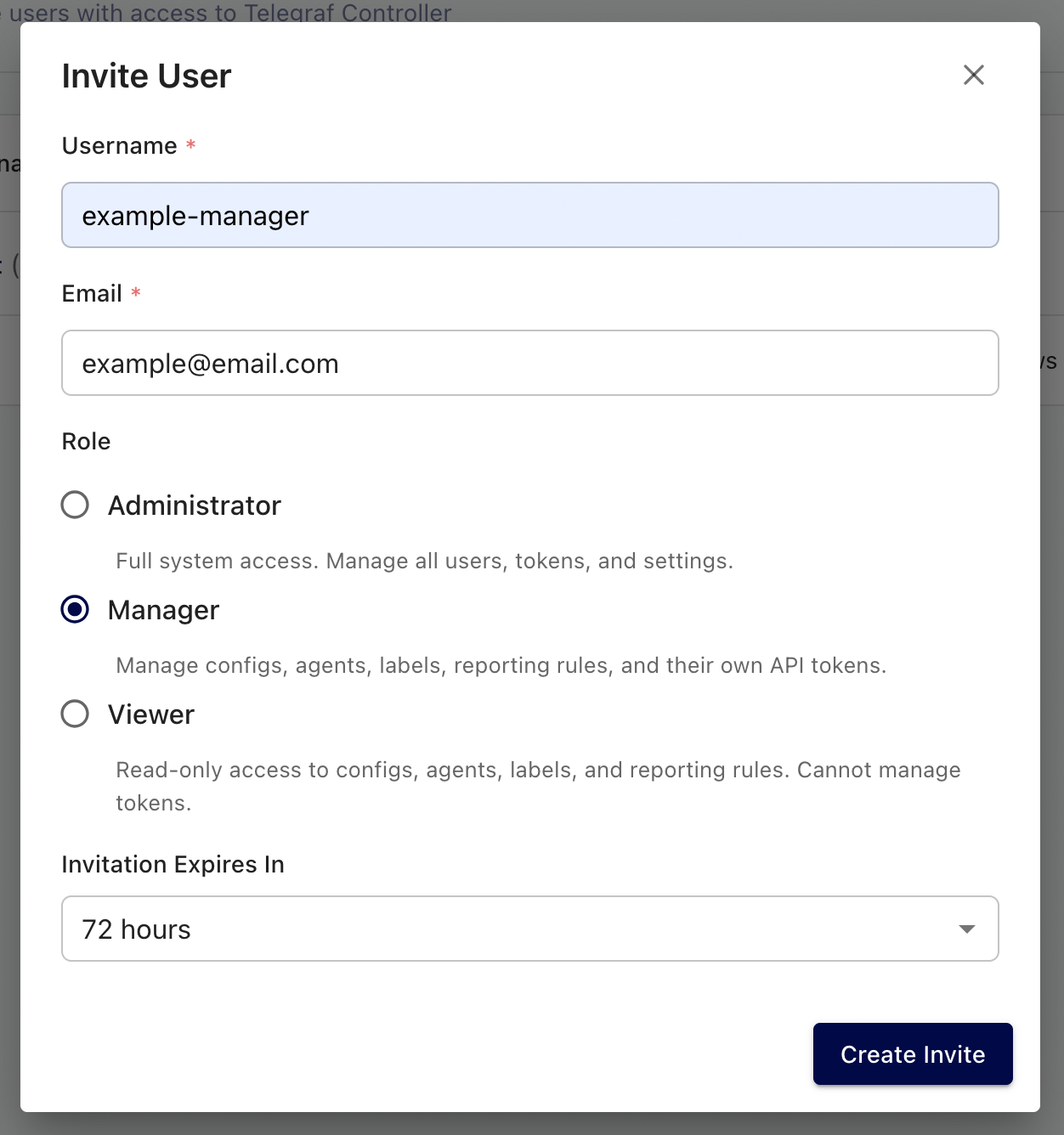
Owners and administrators can invite new users to Telegraf Controller by generating an invite link with a pre-assigned role and expiration. The invited user opens the link, sets a password, and their account is immediately active.

You must have the Owner or Administrator role to create invites.

Create an invite

  1. Navigate to the Users page.
  2. Click the Invite User button.
  3. Select an Authentication provider for the new user. The selector appears only when more than one provider is enabled. Default is Local. See Invite an external provider user for the LDAP and OIDC flows.
  4. Enter a Username for the new user (3–50 characters).
  5. Enter the user’s Email address.
  6. Select a Role for the new user:
    • Administrator – full access to all resources and user management.
    • Manager – can manage configurations, agents, and labels but cannot manage users.
    • Viewer – read-only access to all resources.
  7. Set the invite Expiration in hours. The default is 72 hours. Valid values range from 1 to 720 hours (30 days).
  8. Click Create Invite.
Telegraf Controller invite user form

You cannot invite a user with the Owner role. To make someone the owner, first invite them as an Administrator, then transfer ownership.

Invite an external provider user

When LDAP or OIDC authentication is enabled, you can pre-authorize an external user by selecting their provider in the Authentication provider dropdown when creating the invite.

  • The invite matches on email + provider. The user must sign in through the selected provider with an email that matches the invite.
  • LDAP and OIDC invites do not require a password step; the external provider authenticates the user.
  • Use invites when the provider’s provisioning strategy is invite_only, or when you want to pre-assign a role that overrides the provider’s default role.

For provider setup, see Authentication.

After creating the invite, Telegraf Controller displays a unique invite link. Copy the link and share it with the user through your preferred communication channel (email, chat, etc.).

The link expires after the duration you configured. Once expired, the link can no longer be used and you must create a new invite.

Accept an invite

Accept a local invite

The invited user completes the following steps to activate a local account:

  1. Open the invite link in a browser.
  2. Set a password that meets the configured complexity requirements.
  3. Click Create Account.

The account activates immediately and the user is automatically logged in with the role assigned during the invite.

Accept an LDAP or OIDC invite

When the invite is tied to LDAP or OIDC, the invited user signs in through their identity provider instead of choosing a password:

  1. Open the invite link in a browser.
  2. Click the LDAP or Sign in with <display-name> button.
  3. Complete the provider’s sign-in flow.

The account activates the first time the user signs in successfully with an email address that matches the invite.

Manage pending invites

You can view and manage all pending invites from the Users page. Pending invites appear in a separate list above active users.

To revoke a pending invite before it is used:

  1. Navigate to the Users page.
  2. Locate the pending invite you want to remove.
  3. Click the Delete button next to the invite.
  4. Confirm the deletion when prompted.

Deleting a pending invite invalidates the invite link. The invited user can no longer use it to create an account.


Was this page helpful?

Thank you for your feedback!


InfluxDB OSS 2.9.0: API tokens are hashed by default

Stronger token security in InfluxDB OSS 2.9.0 — tokens are hashed on disk by default. Existing tokens are hashed on first startup and can’t be recovered afterward. Capture any plaintext tokens you still need before you upgrade.

View InfluxDB OSS 2.9.0 release notes

Hashed tokens authenticate exactly like unhashed tokens — clients and integrations keep working.

Also new in 2.9.0:

  • Configurable backup compression
  • Restore support for backups containing hashed tokens
  • Tighter Edge Data Replication queue validation
  • Flux upgrade
  • Compaction reliability improvements

Key enhancements in Explorer 1.9

Explorer 1.9 is now available with InfluxQL support, an AI-assisted Flux to SQL converter (beta), and new live sample data simulators.

View Explorer 1.9 release notes

Explorer 1.9 includes new features and improvements that make it easier to query, visualize, and manage data.

Highlights:

  • Flux to SQL converter (beta): Convert Flux queries to SQL with an AI-assisted converter.
  • InfluxQL support: Query data with InfluxQL in the Data Explorer and dashboards, and save and load InfluxQL queries.
  • InfluxQL visualizations: Render line and bar charts from InfluxQL results with per-tag series grouping.
  • Query error history: Review a history of query errors in the query tool.
  • Live sample data simulators: Generate continuous live sample data with new bird data and signal generator simulators.

For more details, see Explorer 1.9 release notes

InfluxDB 3.10 is now available

InfluxDB 3 Core 3.10 adds an automatic catalog format upgrade, a configurable query-concurrency limit, and processing engine improvements.

Key updates in InfluxDB 3 Core 3.10:

  • Catalog format upgrade: the on-disk catalog automatically upgrades from format v2 to v3 on first 3.10 startup. Migration is one-way—back up your catalog before upgrading.
  • --max-concurrent-queries: limit concurrent queries (adjustable at runtime).
  • GET /ready endpoint for readiness probes.
  • Processing engine: cross-database queries and trigger lockdown flags.

For more information, see the InfluxDB 3 Core release notes.

InfluxDB 3.10 is now available

InfluxDB 3 Enterprise 3.10 adds automated backup and restore, row-level deletions, and user management, with an automatic catalog format upgrade and performance preview improvements.

Key updates in InfluxDB 3 Enterprise 3.10:

  • Catalog format upgrade: the on-disk catalog automatically upgrades from format v2 to v3 on first 3.10 startup. Migration is one-way—back up your catalog before upgrading.
  • Automated backup and restore (beta)
  • Row-level deletions
  • User management (authentication and RBAC) — preview
  • Performance preview improvements

Backup and restore, row-level deletions, and the performance preview require the Enterprise storage engine upgrade (opt-in beta). Beta and preview features are subject to breaking changes and aren’t recommended for production use.

For more information, see the InfluxDB 3 Enterprise release notes

Telegraf Enterprise is now generally available

Telegraf Enterprise is now generally available, along with Telegraf Controller v1.0.

Telegraf Enterprise combines Telegraf Controller, a centralized management console for Telegraf, with official support from InfluxData. Manage configurations, monitor fleet health, and operate tens of thousands of Telegraf agents from a single system.

InfluxDB Docker latest tag changing to InfluxDB 3 Core

On September 15, 2026, the latest tag for InfluxDB Docker images will point to InfluxDB 3 Core. To avoid unexpected upgrades, use specific version tags in your Docker deployments.

If using Docker to install and run InfluxDB, the latest tag will point to InfluxDB 3 Core. To avoid unexpected upgrades, use specific version tags in your Docker deployments. For example, if using Docker to run InfluxDB v2, replace the latest version tag with a specific version tag in your Docker pull command–for example:

docker pull influxdb:2