Documentation

Create an API token

Telegraf Controller is in Public Beta

Telegraf Controller is in public beta and will be part of the future Telegraf Enterprise offering. While in beta, Telegraf Controller is not meant for production use. The Telegraf Controller documentation is a work in progress, and we are actively working to improve it. If you have any questions or suggestions, please submit an issue. We welcome any and all contributions.

Beta expectations

Provide beta feedback

Create a new API token to authenticate requests to the Telegraf Controller API. Tokens let you grant scoped access to external tools, scripts, and services without sharing your login credentials.

Required permissions

You must have an Owner, Administrator, or Manager role assigned to your account.

Create a token

  1. Navigate to the API Tokens page.
  2. Click Create Token.
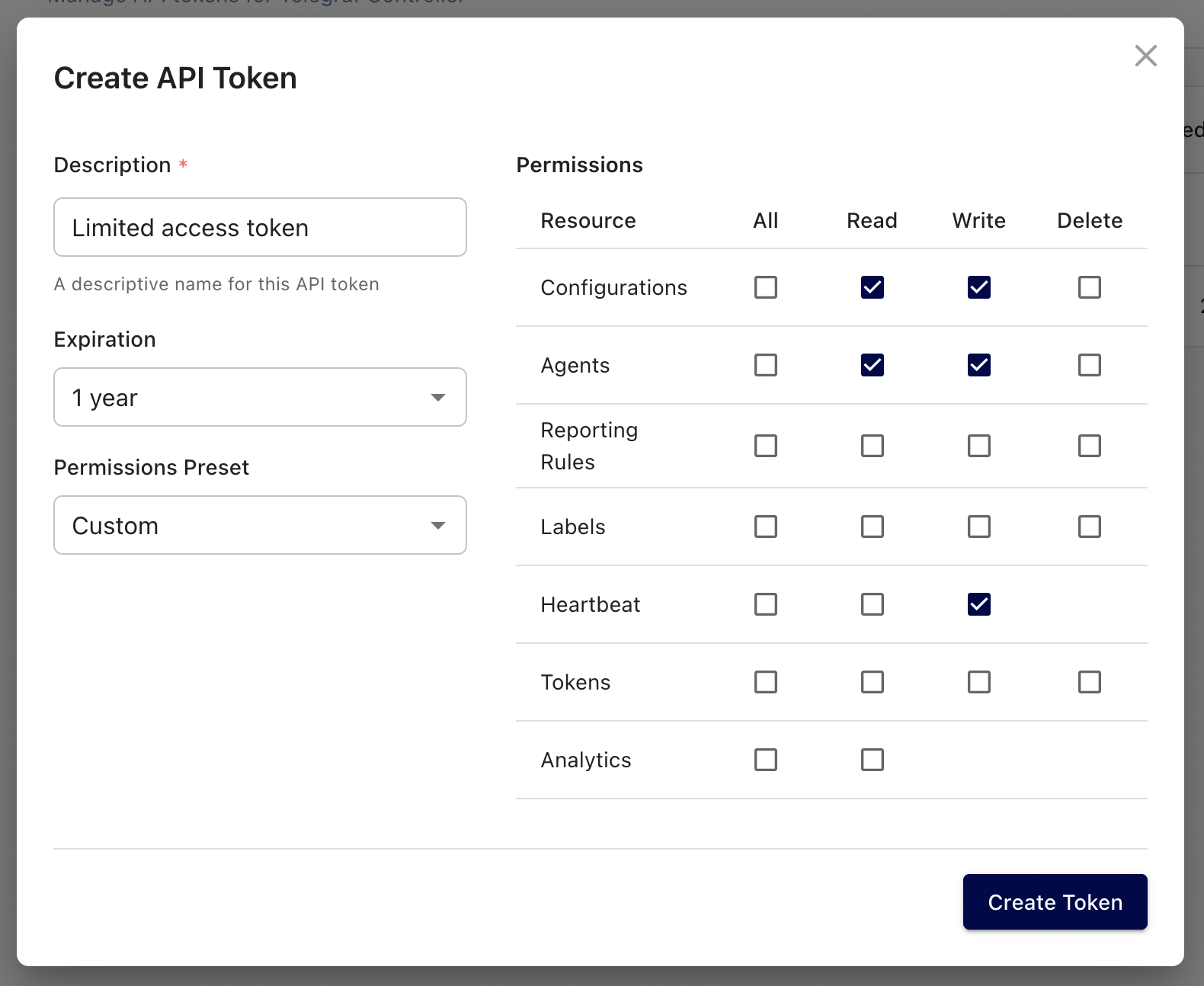
  3. Enter a Description for the token that identifies where or how the token will be used.
  4. (Optional) Set an Expiration date. Tokens without an expiration date remain active indefinitely.
  5. (Optional) Set Custom permissions to restrict the token’s access below your role’s full permissions. See Custom permissions for details.
  6. Click Create.
Telegraf Controller create token form

Copy and store your token

Copy your API token immediately after creation. The full token value is only displayed once and cannot be retrieved later.

Custom permissions

When you set custom permissions on a token, Telegraf Controller intersects those permissions with your role’s existing permissions. This means you can use custom permissions to narrow a token’s access, but you cannot create a token with more access than your role allows.

For example, if you have the Manager role, you cannot create a token with user management permissions. The resulting token will only include the permissions that overlap with what your role grants.

Custom permissions are useful when you want to issue a token for a specific task, such as read-only access to configurations, without exposing the full scope of your role.

If you lose a token

If you lose or forget a token value, you cannot recover it. Revoke the lost token and create a new one to restore access.

For instructions on revoking a token, see Revoke an API token.


Was this page helpful?

Thank you for your feedback!


InfluxDB 3.9: Performance upgrade preview

InfluxDB 3 Enterprise 3.9 includes a beta of major performance upgrades with faster single-series queries, wide-and-sparse table support, and more.

InfluxDB 3 Enterprise 3.9 includes a beta of major performance and feature updates.

Key improvements:

  • Faster single-series queries
  • Consistent resource usage
  • Wide-and-sparse table support
  • Automatic distinct value caches for reduced latency with metadata queries

Preview features are subject to breaking changes.

For more information, see:

Telegraf Enterprise now in public beta

Get early access to the Telegraf Controller and provide feedback to help shape the future of Telegraf Enterprise.

See the Blog Post

The upcoming Telegraf Enterprise offering is for organizations running Telegraf at scale and is comprised of two key components:

  • Telegraf Controller: A control plane (UI + API) that centralizes Telegraf configuration management and agent health visibility.
  • Telegraf Enterprise Support: Official support for Telegraf Controller and Telegraf plugins.

Join the Telegraf Enterprise beta to get early access to the Telegraf Controller and provide feedback to help shape the future of Telegraf Enterprise.

For more information:

Telegraf Controller v0.0.6-beta now available

Telegraf Controller v0.0.6-beta is now available with new features, improvements, and bug fixes.

View the release notes
Download Telegraf Controller v0.0.6-beta

InfluxDB Docker latest tag changing to InfluxDB 3 Core

On May 27, 2026, the latest tag for InfluxDB Docker images will point to InfluxDB 3 Core. To avoid unexpected upgrades, use specific version tags in your Docker deployments.

If using Docker to install and run InfluxDB, the latest tag will point to InfluxDB 3 Core. To avoid unexpected upgrades, use specific version tags in your Docker deployments. For example, if using Docker to run InfluxDB v2, replace the latest version tag with a specific version tag in your Docker pull command–for example:

docker pull influxdb:2