
Apply a Telegraf Enterprise license
Apply a Telegraf Enterprise license to Telegraf Controller either at startup through an environment variable or at runtime through the user interface.
Telegraf Enterprise
Unlock higher configuration and agent limits, high availability, enhanced security features, and official support for Telegraf and Telegraf Controller.
- Prerequisites
- About the license
- Apply a license at startup
- Apply a license through the user interface
- Verify the license is active
- What happens if validation fails
Prerequisites
A Telegraf Enterprise license issued by InfluxData and provided to you as a “license key.” You can optionally store your license in a file with a
.jwtor.txtfile extension.If you have already purchased Telegraf Enterprise, but have not recieved your license, contact InfluxData support.
For the UI method: the Owner role on the Telegraf Controller instance.
About the license
Telegraf Enterprise licenses are signed JSON Web Tokens (JWTs). The license
is text string that you can optionally store in a file with a .jwt
or .txt file extension. Take care not to edit the actual license key.
Any change invalidates the cryptographic signature.
Telegraf Controller validates licenses in both connected and air-gapped environments.
Apply a license at startup
Save your license key to a .jwt or .txt file and use the LICENSE_FILE_PATH
environment variable to apply a license when Telegraf Controller starts. This
method is recommended for automated and infrastructure-as-code deployments.
Place the license file on the Telegraf Controller host.
Copy the license file to a path the Telegraf Controller process can read, for example
/etc/telegraf-controller/license.jwt.Set the
LICENSE_FILE_PATHenvironment variable.Add an
Environment=line to your systemd unit file (typically/etc/systemd/system/telegraf-controller.service):[Service] Environment=LICENSE_FILE_PATH=/etc/telegraf-controller/license.jwtThen reload systemd and restart the service:
sudo systemctl daemon-reload
sudo systemctl restart telegraf-controller
Export the variable in your shell before starting Telegraf Controller:
export LICENSE_FILE_PATH=/etc/telegraf-controller/license.jwt
telegraf_controller --no-interactive
Set the environment variable in PowerShell before starting Telegraf Controller:
$env:LICENSE_FILE_PATH="C:\ProgramData\telegraf-controller\license.jwt"
./telegraf_controller.exe --no-interactive
Start (or restart) Telegraf Controller.
On startup, Telegraf Controller reads the file, validates the license, and stores it in the database. Successful loads appear in the startup logs with the license ID.
LICENSE_FILE_PATH is read only when the database has no license
If the Telegraf Controller database already contains a license,
LICENSE_FILE_PATH is ignored on subsequent restarts. To replace a license
applied this way, either upload a new license through the UI
or remove the existing license
first.
If the file is missing, unreadable, or contains an invalid license, Telegraf Controller starts in free-tier mode and logs the validation error. See Troubleshoot licensing for the error catalog.
Apply a license through the user interface
Use the Telegraf Controller UI to apply or replace a license at runtime without restarting the application. This method requires the Owner role.
Sign in to Telegraf Controller as a user with the Owner role.
Navigate to Settings > Enterprise.
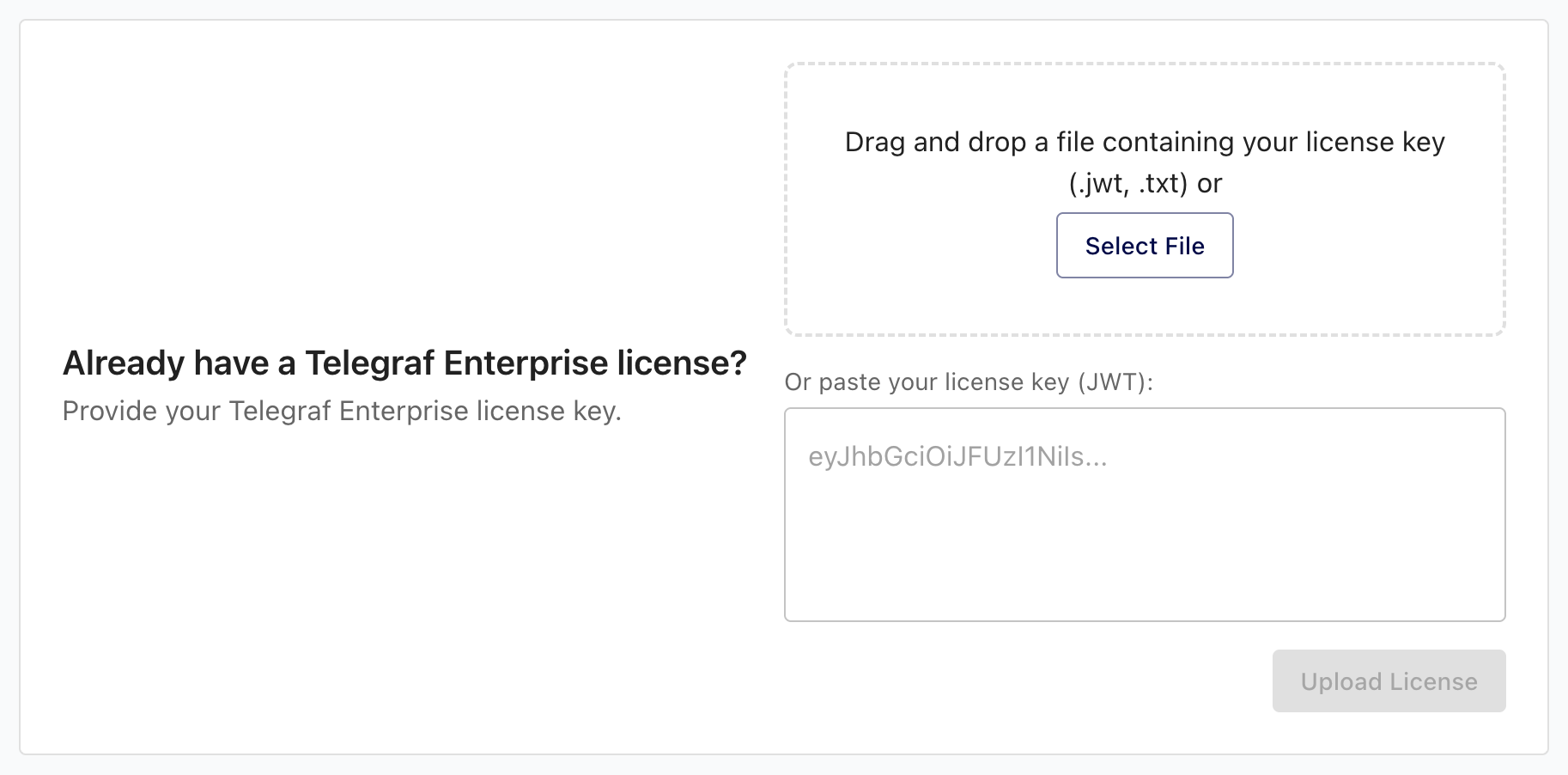
Provide the license in one of two ways:
- Drag and drop the
.jwt(or.txt) license file into the drop zone. - Paste the license key (JWT) string into the textarea.
- Drag and drop the
Click Upload license.
Telegraf Controller validates the license immediately. On success, the page refreshes to show the license ID, expiration date, and entitlements. No restart is required. Enterprise features and the new scale limits take effect for all in-flight and subsequent requests.
If validation fails, an error message describes the reason. The previously active license (if any) remains in effect. Telegraf Controller never downgrades from a valid license because of a failed upload.
Verify the license is active
In the UI, navigate to Settings > Enterprise to view the current license details: license ID, the date the license was loaded, the expiration date, the maximum configurations entitlement, and the maximum reporting agents entitlement.
From the API, any authenticated user can call GET /api/license/entitlements
to see the current entitlements and usage. This is the recommended endpoint
for status checks in scripts and monitoring dashboards because it doesn’t
require the Owner role.
curl -H "Authorization: Bearer YOUR_TC_API_TOKEN" \
  https://telegraf_controller.example.com/api/license/entitlements
Replace YOUR_TC_API_TOKEN
with your Telegraf Controller API token.
Example response when a license is active:
{
  "status": "valid",
  "licenseId": "Xxxx0oXx-Xx0o-00Xx-oXxX-xX0oXx0oXx0o",
  "expiresAt": "2026-12-31T00:00:00Z",
  "enterpriseEnabled": true,
  "entitlements": {
    "maxConfigs": 100000,
    "maxAgents": 18000
  },
  "usage": {
    "configs": 47,
    "agents": 183
  }
}
When no license is applied, status is "unlicensed", enterpriseEnabled is
false, and the entitlements show the free-tier limits.
What happens if validation fails
Telegraf Controller rejects malformed, unsigned, expired (beyond the grace period), or otherwise invalid licenses. See Troubleshoot licensing for the full catalog of validation errors and how to resolve them.
Was this page helpful?
Thank you for your feedback!
Support and feedback
Thank you for being part of our community! We welcome and encourage your feedback and bug reports for Telegraf Controller and this documentation. To find support, use the following resources:
Customers with an annual or support contract can contact InfluxData Support.