
Create and manage labels
Create, edit, search, and delete labels on the Labels page, or manage them with the API.
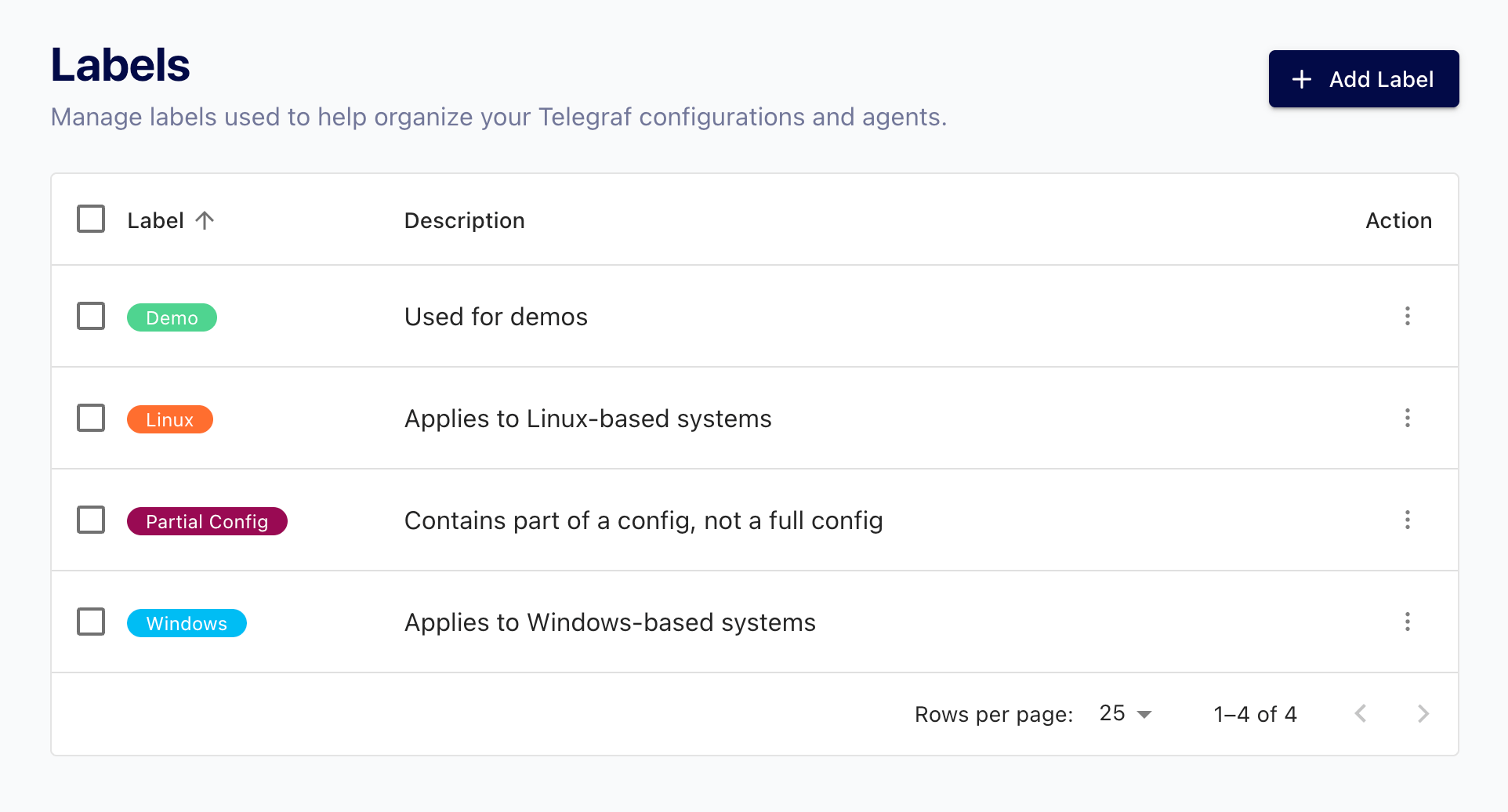
Create a label
- Navigate to the Labels page.
- Click Add Label.
- Enter a name and, optionally, a description and a color. Label names must be unique.
- Click Save.
Edit a label
- On the Labels page, click the menu on the label’s row.
- Click Edit.
- Update the name, description, or color, and save. Renaming a label to an existing label’s name is rejected.
Edits apply everywhere the label is assigned.
Delete labels
To delete a single label, click the menu on the label’s row, and then click Delete.
To delete multiple labels, select their rows with the checkboxes, and then click Delete Labels.
Deleting a label removes it from every configuration, agent, and configuration group it is assigned to.
Search the label list
Use the search box on the Labels page to find labels. The search matches both label names and descriptions. The list is sorted by name.
Manage labels with the API
Label management requires an API token with permission on the Labels API: read to list labels, write to create and edit them, and delete to delete them.
| Method | Path | Action |
|---|---|---|
GET | /api/labels | List labels |
GET | /api/labels/:id | Get one label |
POST | /api/labels | Create a label |
PATCH | /api/labels/:id | Update a label |
DELETE | /api/labels/:id | Delete a label |
DELETE | /api/labels | Delete multiple labels by ID |
For example, to create a label:
curl -X POST "https://telegraf-controller.example.com/api/labels" \
  -H "Authorization: Bearer API_TOKEN" \
  -H "Content-Type: application/json" \
  -d '{"name": "production", "description": "Production fleet", "color": "#3b82f6"}'
For request and response details, see the API reference at /api/docs
on your Telegraf Controller server.
Was this page helpful?
Thank you for your feedback!
Support and feedback
Thank you for being part of our community! We welcome and encourage your feedback and bug reports for Telegraf Controller and this documentation. To find support, use the following resources:
Customers with an annual or support contract can contact InfluxData Support.