---
title: Manage configuration versions
description: Use Telegraf Controller to view, compare, roll back, and prune versions of your Telegraf configurations. Telegraf Controller records a new version each time you change a configuration’s TOML content.
url: https://docs.influxdata.com/telegraf/controller/configs/versions/
estimated_tokens: 1331
publisher: InfluxData
canonical: https://docs.influxdata.com/telegraf/controller/configs/versions/
date: '2026-08-25T08:20:28-06:00'
lastmod: '2026-08-25T08:20:28-06:00'
---
Telegraf Controller keeps a version history for every Telegraf configuration.
Use the version history to review past changes, compare two versions, roll a
configuration back to a previous version, and prune versions you no longer
need.
## How versions are created
Telegraf Controller creates configuration versions automatically:
* When you create a configuration, Telegraf Controller records it as the
first version with the change note “Initial version”.
* When you save a configuration whose TOML content has changed, Telegraf Controller records
a new version.
* Changes to configuration metadata, such as the configuration name or
description, *do not* create a new version.
When saving changes, use the optional **Change note** field to attach a
description of your changes up to 1,000 characters. Change notes make versions
easier to identify in the version history.
Versions are kept until you prune them; there is no automatic retention limit.
## View version history
1. In the Telegraf Controller web interface, select **Configurations** in the
navigation bar.
2. Click the name of the configuration.
3. Select the **Versions** tab.
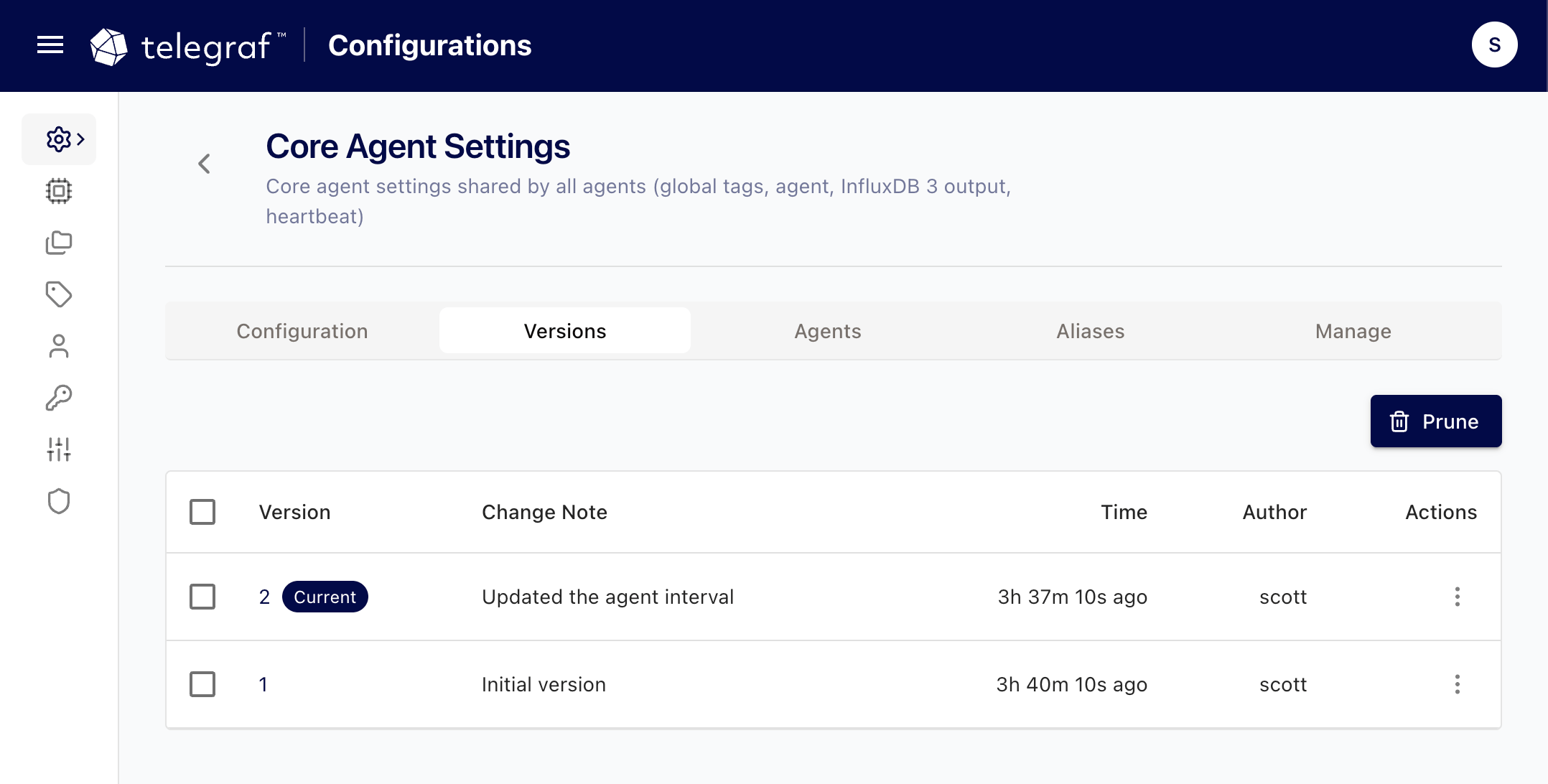 The version history table includes the following for each version:
* **Version**: the version number. Telegraf Controller numbers versions
sequentially, starting at 1. The version that matches the current
configuration content is marked **Current**.
* **Time**: when the version was created.
* **Author**: the user who saved the version.
* **Change Note**: the description provided when the version was saved.
To view the full TOML content stored in a version, click the**More button ()** in the version’s row and select **View/Edit**.
## Update a change note
1. In the version’s row, click the **More button ()**and select **View/Edit**.
2. Update the change note and confirm your changes.
## Compare versions
1. In the version history table, select exactly two versions.
2. Click **Compare**.
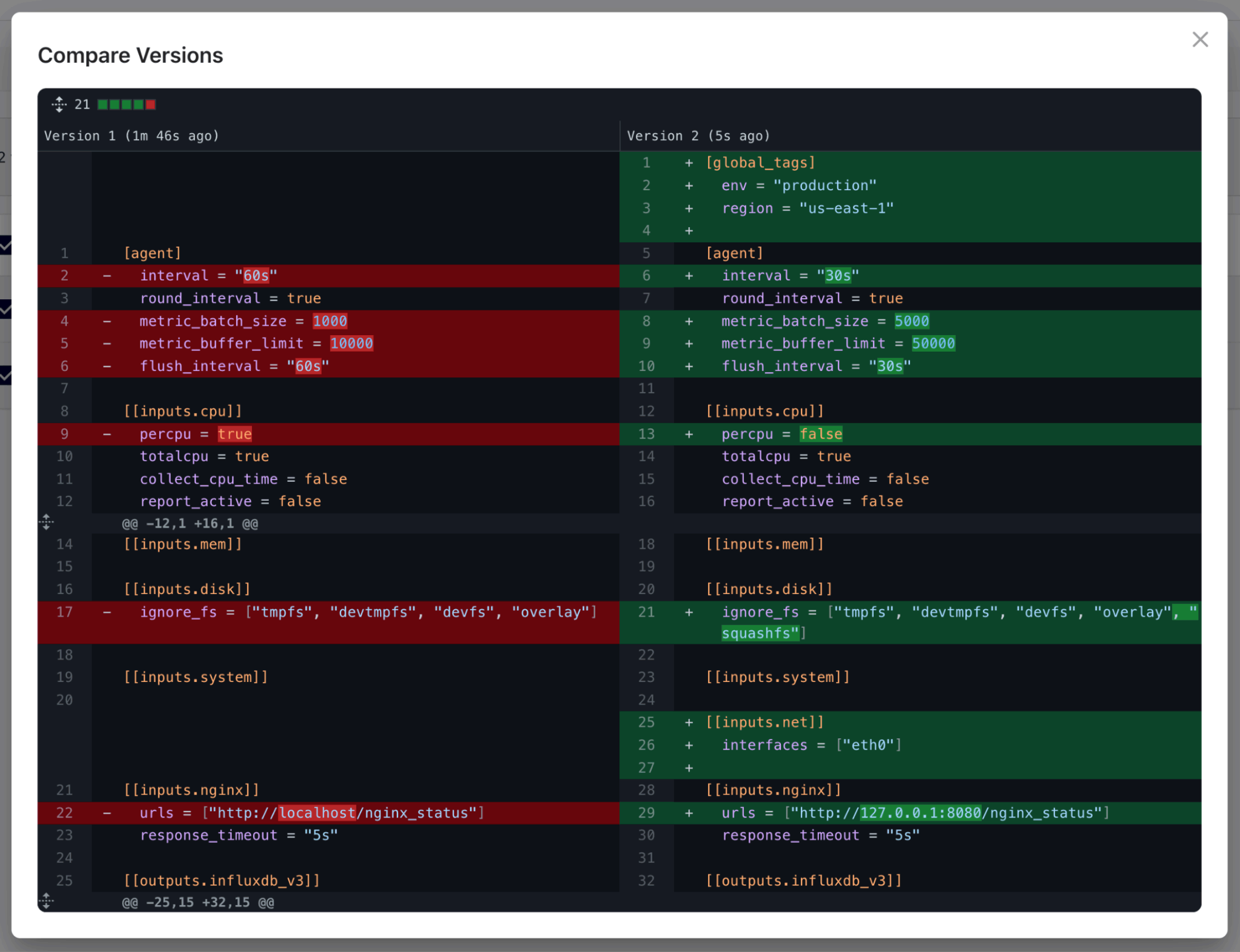
The **Compare Versions** dialog displays a diff of the TOML content of the two
versions, using the lower-numbered version as the base.
The version history table includes the following for each version:
* **Version**: the version number. Telegraf Controller numbers versions
sequentially, starting at 1. The version that matches the current
configuration content is marked **Current**.
* **Time**: when the version was created.
* **Author**: the user who saved the version.
* **Change Note**: the description provided when the version was saved.
To view the full TOML content stored in a version, click the**More button ()** in the version’s row and select **View/Edit**.
## Update a change note
1. In the version’s row, click the **More button ()**and select **View/Edit**.
2. Update the change note and confirm your changes.
## Compare versions
1. In the version history table, select exactly two versions.
2. Click **Compare**.
The **Compare Versions** dialog displays a diff of the TOML content of the two
versions, using the lower-numbered version as the base.
 ## Roll back to a previous version
Rolling back restores the TOML content and editor mode of a previous version.
A rollback does not rewrite history: Telegraf Controller creates a new
version containing the restored content, with a change note that records
which version it was restored from.
1. In the version’s row, click the **More button ()**and select **Rollback**.
2. Review the confirmation and click **Confirm & Rollback**.
You can roll back to any version except the version marked **Current**.
After a rollback, agents configured with `--config-url-watch-interval` load
the restored configuration on their next watch interval. For details, see[Auto-update agents](/telegraf/controller/configs/update/#auto-update-agents).
## Prune versions
Prune versions to remove them from the version history, for example, to clean
up old versions you no longer need. Pruning is permanent.
> [!Note]
> #### Protected versions
>
> The version marked **Current** and the only remaining version of a
> configuration cannot be pruned. Pruning by selection or by criteria skips
> protected versions automatically.
### Prune a single version
1. In the version’s row, click the **More button ()**and select **Prune**.
2. Review the confirmation and click **Confirm & Prune**.
### Prune selected versions
1. In the version history table, select the versions to prune.
2. Click **Prune**.
3. Review the confirmation and click **Confirm & Prune**.
If your selection includes the current version, Telegraf Controller keeps
the current version and prunes the other selected versions.
### Prune versions by criteria
With no versions selected:
1. Click **Prune**.
2. Select a pruning criterion:
* **Before version**: prune all versions before the version you select.
* **Before date & time**: prune all versions created before the date and
time you select.
3. Review the confirmation and click **Confirm & Prune**.
## Permissions
Version operations require permissions on the **Configs** resource:
* **Read**: view and compare versions.
* **Write**: roll back to a version.
* **Delete**: prune versions.
For how permissions map to user roles and API tokens, see[Authentication and authorization](/telegraf/controller/reference/authentication-authorization/).
If audit logging is enabled, Telegraf Controller records version operations
(rollbacks, change note updates, and pruning) in the[audit log](/telegraf/controller/audit-logs/).
## Version API
Manage versions programmatically using the Telegraf Controller API. Version
endpoints are available under `/api/configs/{configId}/versions`. For the
full API reference, see[Telegraf Controller API](/telegraf/controller/reference/api/).
#### Related
* [Update a Telegraf configuration](/telegraf/controller/configs/update/)
* [Create a Telegraf configuration](/telegraf/controller/configs/create/)
* [Audit logs](/telegraf/controller/audit-logs/)
## Roll back to a previous version
Rolling back restores the TOML content and editor mode of a previous version.
A rollback does not rewrite history: Telegraf Controller creates a new
version containing the restored content, with a change note that records
which version it was restored from.
1. In the version’s row, click the **More button ()**and select **Rollback**.
2. Review the confirmation and click **Confirm & Rollback**.
You can roll back to any version except the version marked **Current**.
After a rollback, agents configured with `--config-url-watch-interval` load
the restored configuration on their next watch interval. For details, see[Auto-update agents](/telegraf/controller/configs/update/#auto-update-agents).
## Prune versions
Prune versions to remove them from the version history, for example, to clean
up old versions you no longer need. Pruning is permanent.
> [!Note]
> #### Protected versions
>
> The version marked **Current** and the only remaining version of a
> configuration cannot be pruned. Pruning by selection or by criteria skips
> protected versions automatically.
### Prune a single version
1. In the version’s row, click the **More button ()**and select **Prune**.
2. Review the confirmation and click **Confirm & Prune**.
### Prune selected versions
1. In the version history table, select the versions to prune.
2. Click **Prune**.
3. Review the confirmation and click **Confirm & Prune**.
If your selection includes the current version, Telegraf Controller keeps
the current version and prunes the other selected versions.
### Prune versions by criteria
With no versions selected:
1. Click **Prune**.
2. Select a pruning criterion:
* **Before version**: prune all versions before the version you select.
* **Before date & time**: prune all versions created before the date and
time you select.
3. Review the confirmation and click **Confirm & Prune**.
## Permissions
Version operations require permissions on the **Configs** resource:
* **Read**: view and compare versions.
* **Write**: roll back to a version.
* **Delete**: prune versions.
For how permissions map to user roles and API tokens, see[Authentication and authorization](/telegraf/controller/reference/authentication-authorization/).
If audit logging is enabled, Telegraf Controller records version operations
(rollbacks, change note updates, and pruning) in the[audit log](/telegraf/controller/audit-logs/).
## Version API
Manage versions programmatically using the Telegraf Controller API. Version
endpoints are available under `/api/configs/{configId}/versions`. For the
full API reference, see[Telegraf Controller API](/telegraf/controller/reference/api/).
#### Related
* [Update a Telegraf configuration](/telegraf/controller/configs/update/)
* [Create a Telegraf configuration](/telegraf/controller/configs/create/)
* [Audit logs](/telegraf/controller/audit-logs/)