
Configure LDAP authentication
LDAP authentication signs users in by binding their credentials against an LDAP or Active Directory server. Telegraf Controller can read user attributes and group membership from the directory and use them to assign roles and provision accounts.
Available with Telegraf Enterprise
LDAP authentication is available with Telegraf Enterprise. If you are interested in learning more about Telegraf Enterprise, contact us.
- Prerequisites
- Configure LDAP at startup
- Configure provisioning
- Configure group-to-role mapping
- Bootstrap the owner against LDAP
- Provider examples
- Disable LDAP
- Audit events
Prerequisites
- A valid Telegraf Enterprise license applied to your Telegraf Controller instance.
- A reachable LDAP server (
ldap://orldaps://) and a service-account bind DN that can search the user subtree. - Permission to modify the Telegraf Controller startup environment.
- The Owner role to change LDAP settings from the Settings page.
LDAP transport settings change only at startup
Server URL, bind credentials, search base and filter, TLS options, and attribute mappings are read at startup and cannot be changed at runtime. Provisioning, default role, allowed domains, and group-to-role mappings are runtime-editable from the Settings page.
MFA is enforced by your LDAP server
Telegraf Controller does not implement multi-factor authentication directly for LDAP. If your LDAP or Active Directory server requires MFA during bind, users complete that challenge as part of the LDAP sign-in flow. Configure MFA in your directory server, not in Telegraf Controller.
Configure LDAP at startup
Set the LDAP environment variables before starting Telegraf Controller. The variables in the following table are the minimum required to enable LDAP authentication.
| Variable | Description | Required |
|---|---|---|
AUTH_LDAP_ENABLED | Set to true to enable LDAP authentication. | Yes |
AUTH_LDAP_URL | LDAP server URL (ldap:// or ldaps://). | Yes |
AUTH_LDAP_BIND_DN | Service account distinguished name used for searches. | Yes |
AUTH_LDAP_BIND_PASSWORD | Password for the service account. | Yes |
AUTH_LDAP_USER_SEARCH_BASE | Base DN under which user entries live. | Yes |
AUTH_LDAP_USER_SEARCH_FILTER | LDAP filter with {{username}} placeholder. | No |
AUTH_LDAP_START_TLS | If true, upgrade an ldap:// connection with StartTLS. | No |
AUTH_LDAP_CA_CERT_PATH | Path to a CA certificate that signs the LDAP server. | No |
AUTH_LDAP_REJECT_UNAUTHORIZED | If false, skip TLS verification (development only). | No |
AUTH_LDAP_ATTR_USERNAME | Directory attribute for the user’s login name. | No |
AUTH_LDAP_ATTR_EMAIL | Directory attribute for the user’s email address. | No |
AUTH_LDAP_ATTR_DISPLAY_NAME | Directory attribute for the user’s display name. | No |
AUTH_LDAP_ATTR_GROUPS | Directory attribute containing group memberships. | No |
For the full description of each variable, including defaults, see Authentication and security configuration options.
Apply the configuration
Add the LDAP variables to your systemd unit file (typically
/etc/systemd/system/telegraf-controller.service):
[Service]
Environment=AUTH_LDAP_ENABLED=true
Environment=AUTH_LDAP_URL=ldaps://ldap.example.com:636
Environment=AUTH_LDAP_BIND_DN=cn=svc-controller,ou=services,dc=example,dc=com
Environment=AUTH_LDAP_BIND_PASSWORD=changeme
Environment=AUTH_LDAP_USER_SEARCH_BASE=ou=people,dc=example,dc=com
Environment=AUTH_LDAP_USER_SEARCH_FILTER=(uid={{username}})
Reload systemd and restart the service:
sudo systemctl daemon-reload
sudo systemctl restart telegraf-controller
Export the variables, or pass equivalent flags on the command line:
export AUTH_LDAP_ENABLED=true
export AUTH_LDAP_URL=ldaps://ldap.example.com:636
export AUTH_LDAP_BIND_DN='cn=svc-controller,ou=services,dc=example,dc=com'
export AUTH_LDAP_BIND_PASSWORD=changeme
export AUTH_LDAP_USER_SEARCH_BASE='ou=people,dc=example,dc=com'
export AUTH_LDAP_USER_SEARCH_FILTER='(uid={{username}})'

telegraf_controller --no-interactive
Set the variables in PowerShell, or pass equivalent flags on the command line:
$env:AUTH_LDAP_ENABLED="true"
$env:AUTH_LDAP_URL="ldaps://ldap.example.com:636"
$env:AUTH_LDAP_BIND_DN="cn=svc-controller,ou=services,dc=example,dc=com"
$env:AUTH_LDAP_BIND_PASSWORD="changeme"
$env:AUTH_LDAP_USER_SEARCH_BASE="ou=people,dc=example,dc=com"
$env:AUTH_LDAP_USER_SEARCH_FILTER="(uid={{username}})"

./telegraf_controller.exe --no-interactive
After Telegraf Controller starts, sign in as an owner and confirm:
- Settings > LDAP Authentication shows the redacted connection details.
- The sign-in page offers an LDAP option.
Call the public status endpoint to confirm the provider is registered:
curl -s http://localhost:8888/api/auth/status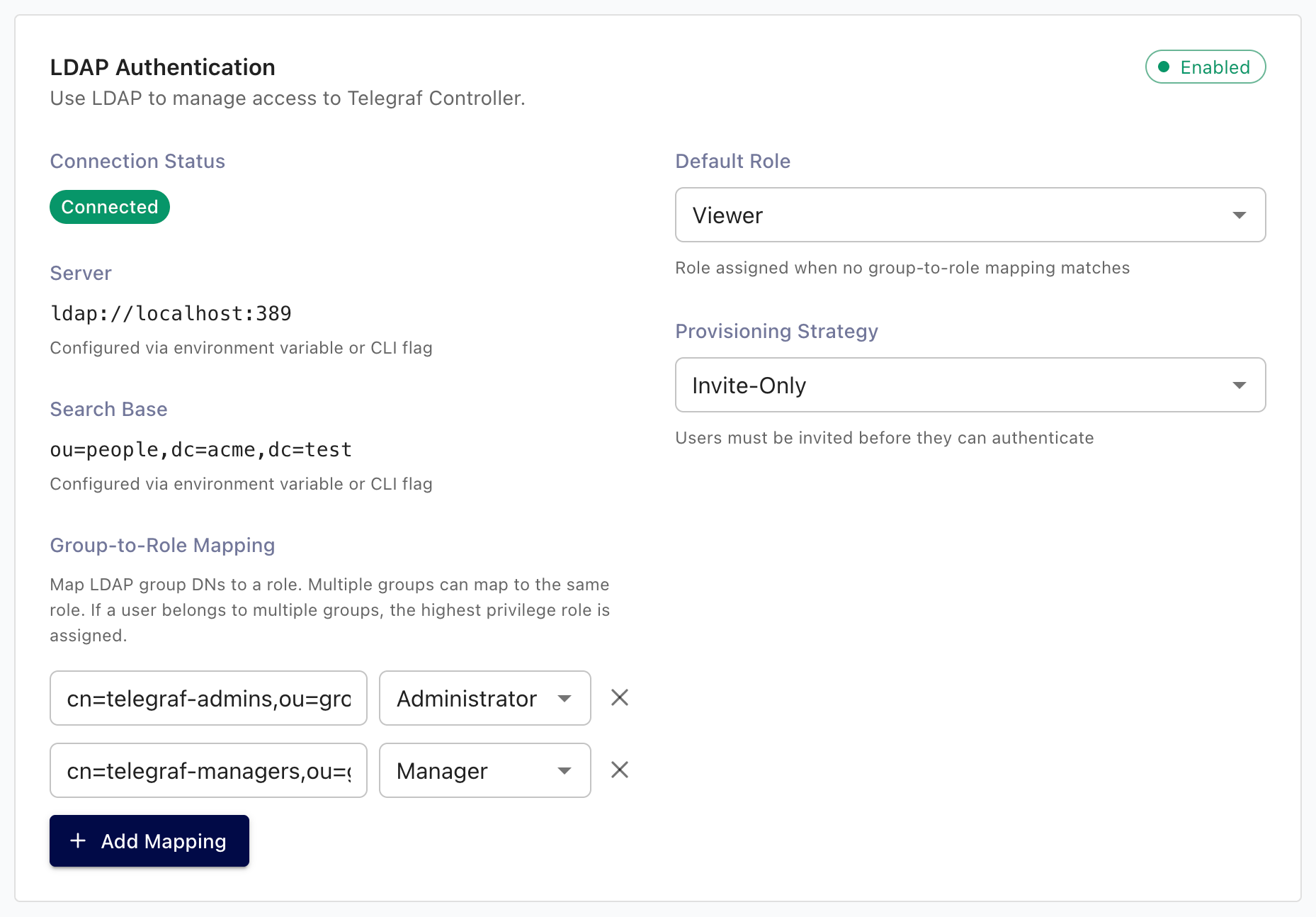
Configure provisioning
Provisioning rules decide what happens the first time an LDAP user signs in. Configure them on the Settings > LDAP Authentication panel.
| Setting | Description | Default |
|---|---|---|
| Provisioning strategy | invite_only, domain_restricted, or auto_create. See Provisioning strategies. | invite_only |
| Default role | Role assigned when no group mapping matches the user. | viewer |
| Allowed email domains | Comma-separated list, required when the strategy is domain_restricted. | (none) |
| Auto-link by verified email | When enabled, link an LDAP user to an existing local user whose email matches. | Disabled |
| On no group match | use_default_role admits the user with the default role; reject denies the sign-in. | use_default_role |
To update provisioning settings:
- Sign in as an Owner or Administrator.
- Navigate to the Settings page.
- In the LDAP Authentication section, update the values.
- Click Save.
The new values take effect on the next sign-in attempt.
Configure group-to-role mapping
Group-to-role mappings translate directory group membership into Telegraf Controller roles.
- On the Settings page, scroll to LDAP Authentication > Group role mappings.
- Click Add Mapping and provide:
- Provider ID: a label that identifies the LDAP instance. Use the
default
defaultunless you run multiple directories. - Group name: the value Telegraf Controller receives in the
AUTH_LDAP_ATTR_GROUPSattribute (for examplecn=telegraf-admins,ou=groups,dc=example,dc=comor the baretelegraf-admins, depending on your directory). - Role:
administrator,manager, orviewer.
- Provider ID: a label that identifies the LDAP instance. Use the
default
- Click Save.
When a user signs in, Telegraf Controller matches each of their groups against the mappings and assigns the highest matching role. Users without a matching group fall back to Default role or are rejected, depending on the On no group match setting.
Owner role is not assignable through mappings
The Owner role is reserved for the bootstrap owner and accounts created by Transfer ownership. Group mappings cannot promote a user to Owner.
Bootstrap the owner against LDAP
You only need to bootstrap an LDAP-backed owner if you plan to disable local authentication. Otherwise, the default local owner can administer LDAP from the Settings page without limitation.
On first startup, set both of the following alongside the standard owner variables:
export OWNER_AUTH_PROVIDER=ldap
export OWNER_EXTERNAL_ID='uid=alice,ou=people,dc=example,dc=com'| Variable | Description |
|---|---|
OWNER_AUTH_PROVIDER | Set to ldap to bootstrap the owner with LDAP as the primary provider. |
OWNER_EXTERNAL_ID | The user’s LDAP distinguished name (DN). This must match the DN the LDAP server returns when the user signs in. |
The owner can sign in through LDAP and also retains a local password hash as a recovery credential. See Configure local authentication for the disable-local procedure.
Provider examples
Disable LDAP
To disable LDAP authentication, remove AUTH_LDAP_ENABLED (or set it to
a value other than true) and restart Telegraf Controller.
POST /api/auth/login/ldapreturns403 Forbiddenafter restart.- Existing LDAP-provisioned user accounts remain in the database. They cannot sign in through LDAP until LDAP is re-enabled, but they continue to appear in the Users list.
- API tokens issued to LDAP users continue to work until the owning user is disabled or deleted.
Audit events
LDAP sign-in and sign-out emit the following audit events. They appear in the audit log when audit logging is enabled.
| Event | Description |
|---|---|
user.login | Recorded after a successful LDAP sign-in. |
user.logout | Recorded when a user signs out. |
For details on enabling and reviewing audit events, see Audit logs.
Was this page helpful?
Thank you for your feedback!
Support and feedback
Thank you for being part of our community! We welcome and encourage your feedback and bug reports for Telegraf Controller and this documentation. To find support, use the following resources:
Customers with an annual or support contract can contact InfluxData Support.