
Use the Admin UI to query data
Use the Query page in the InfluxDB 3 Cloud Admin UI to run SQL queries against your databases without installing a client. The page includes a SQL editor, a schema browser, and a result preview.
Open the Query page
In the Admin UI, select your instance, and then select Query in the left navigation.
The Query page is SQL-only.
To query with InfluxQL, use the
influxdb3 CLI or the
HTTP API.
Browse the schema
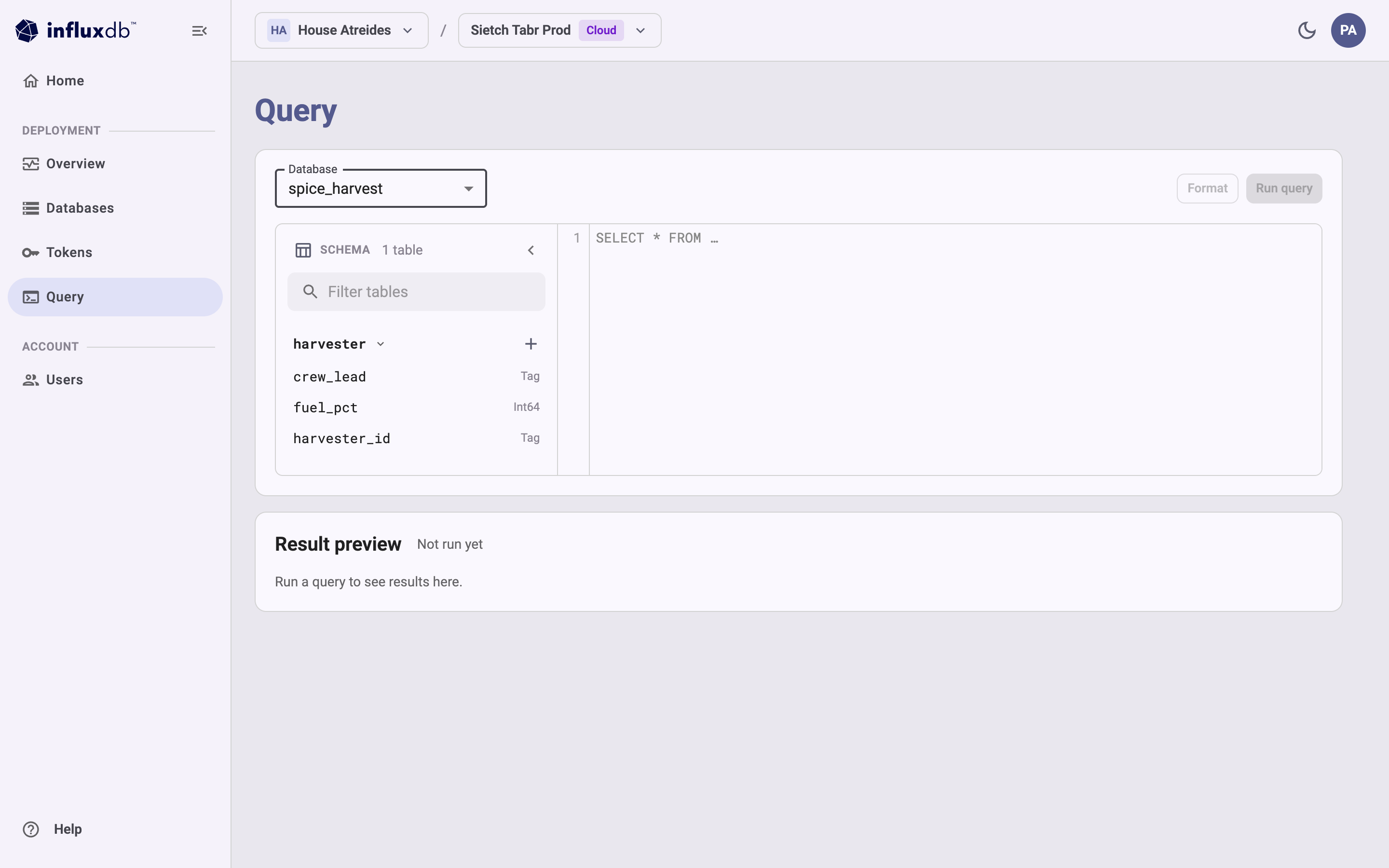
Use the Database list to select the database to query. The schema browser, labeled SCHEMA, shows the number of tables in the selected database and the tables themselves.
- Enter text in Filter tables to narrow the list of tables.
- Select a table to expand it and show its columns and their data types,
such as
TagorInt64. - Select the + button next to a table to insert the table name at the cursor in the editor. Select a column to insert the column name.
- Select the arrow in the schema header to hide the schema browser, and select it again to show the schema browser.
Run a query
In the Database list, select the database to query.
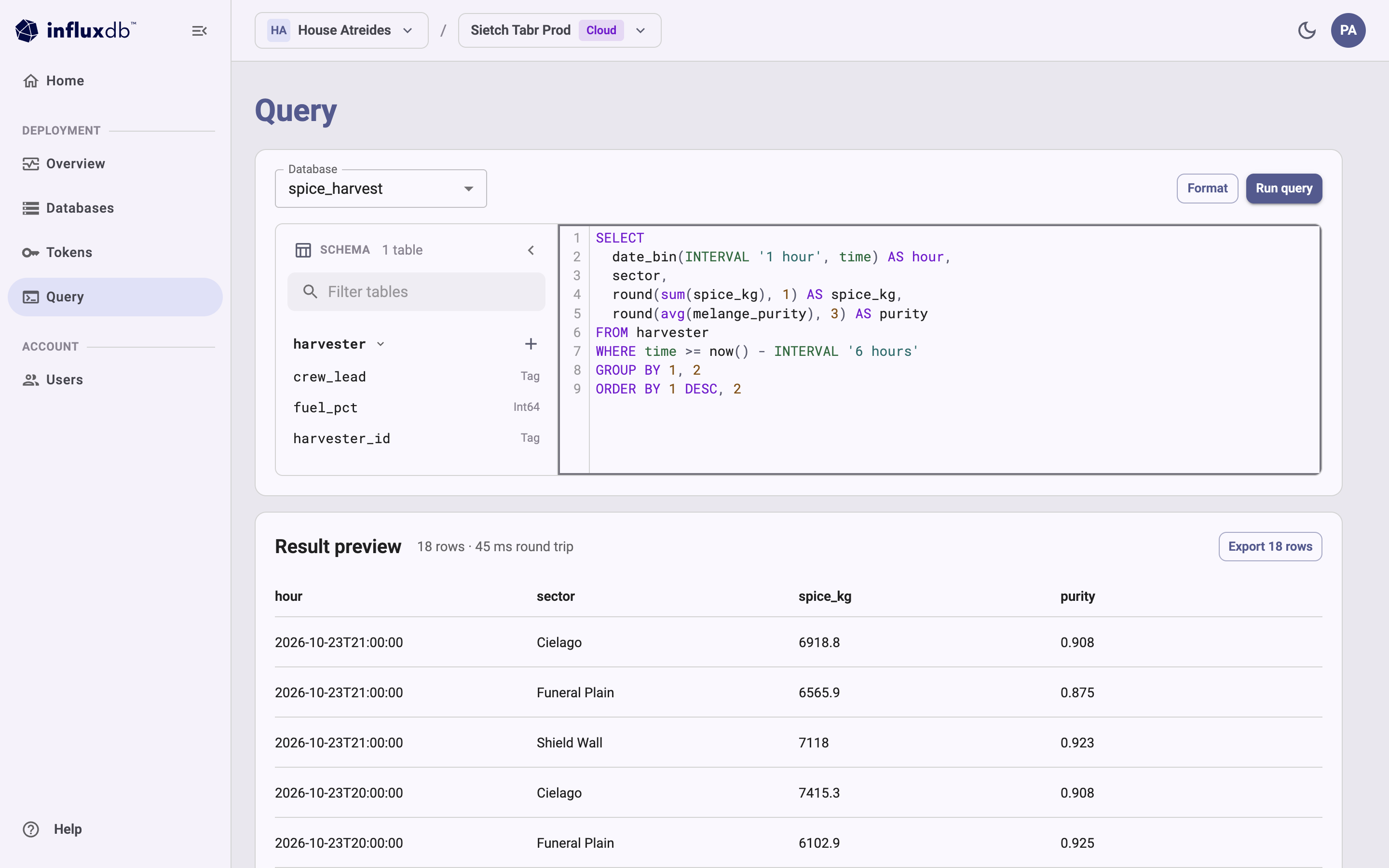
Enter a SQL query in the editor. For example:
SELECT
  date_bin(INTERVAL '1 hour', time) AS hour,
  sector,
  round(sum(spice_kg), 1) AS spice_kg,
  round(avg(melange_purity), 3) AS purity
FROM harvester
WHERE time >= now() - INTERVAL '6 hours'
GROUP BY 1, 2
ORDER BY 1 DESC, 2
(Optional) Select Format to reformat the query.
Select Run query or press
Ctrl+Enter.
Result preview shows the number of rows returned and the round-trip time for the query, followed by a table of results.
For SQL syntax and functions, see the SQL reference.
Export results
To save the results, select Export N rows in the Result preview section. The Admin UI downloads the results as a CSV file.
Query limits and access
- The Admin UI returns at most 10,000 rows. If a query returns more, the page shows “Showing the first 10,000 rows. Add a LIMIT or narrow the query to see the rest.”
- The databases in the Database list are the databases your account can access. If you don’t have access to any databases on the instance, the page shows “You do not have access to any databases on this instance.” Ask an account administrator for access. Roles that can only describe databases, such as the Auditor role, can’t read data from them.
Other ways to query
To query programmatically or retrieve more than 10,000 rows, use one of the following:
Was this page helpful?
Thank you for your feedback!
Support and feedback
Thank you for being part of our community! We welcome and encourage your feedback and bug reports for InfluxDB 3 Cloud and this documentation. To find support, use the following resources:
Customers with an annual or support contract can contact InfluxData Support.