
Enable autoscaling
Enable autoscaling to automatically adjust your InfluxDB Cloud Dedicated cluster capacity in response to workload demand. Autoscaling helps protect performance during spikes while minimizing manual intervention and over-provisioning.
What is autoscaling
Autoscaling for InfluxDB Cloud Dedicated automatically scales cluster components based on workload demand. Clusters scale up from a minimum committed size to upper limits that you define, and scale back toward the baseline when demand decreases.
With autoscaling, you can:
- Improve performance: Scale up automatically during peak loads to maintain ingest and query performance.
- Increase cost efficiency: Scale down to your baseline commitment during periods of low demand to reduce infrastructure costs.
- Simplify operations: Reduce manual interventions needed to resize clusters as workloads change.
Autoscaling is generally available for InfluxDB Cloud Dedicated clusters.
How autoscaling works
Autoscaling for InfluxDB Cloud Dedicated uses Kubernetes autoscaling under the hood and supports independent scaling of cluster components. In particular, ingest and query components can scale separately based on their respective workloads.
At a high level
- You have a baseline configuration that defines your committed cluster size.
- You select upper autoscaling limits for key components (for example, querier and ingester CPU).
- When workload demand increases and resource utilization exceeds thresholds, autoscaling increases resources for the affected components, up to the configured limits.
- When demand drops and capacity is no longer required, autoscaling gradually scales components back toward the baseline.
- Scaling can be granular, adding as few CPUs and as little memory as needed; both CPU and memory are used to determine when and how to scale.
Autoscaling does not change other aspects of your contract, such as data retention or feature availability. Your InfluxDB Cloud Dedicated representative or support team will confirm appropriate limits for each cluster.
Scaling and billing
Scaling occurs only when your workload requires it. While the cluster runs at or below the baseline configuration, usage is covered by your existing commitment.
If autoscaling increases resources above the baseline, you may incur additional usage charges beyond your committed spend, in accordance with your agreement. Work with your Account Executive to choose limits that balance performance goals and cost expectations.
Enable autoscaling for a cluster
Contact InfluxData support to enable autoscaling for your cluster. Provide your autoscaling requirements so the support team can configure appropriate limits.
Update or disable autoscaling
Autoscaling settings can be adjusted at any time after enablement. For example, you might raise the upper limit for querier CPU, lower the limit for ingester CPU, or turn autoscaling off entirely.
To update or disable autoscaling for a cluster, contact InfluxData support and provide:
- Cloud Dedicated account ID and cluster ID.
- Whether you want to:
- Change autoscaling limits for querier and ingester components, or
- Disable autoscaling for the cluster.
- Any relevant workload or performance context (for example, new peak load patterns).
Monitor autoscaling behavior
If autoscaling is enabled, you can view the configured limits in the cluster card on the Admin UI Overview page.
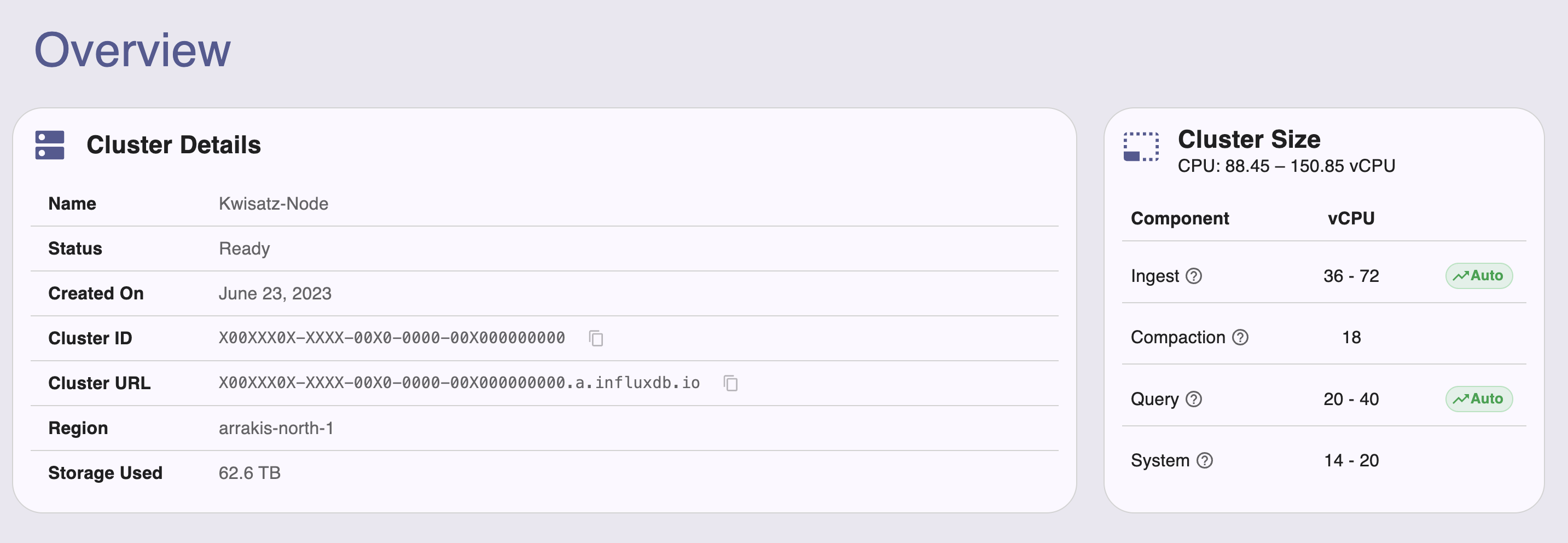
After autoscaling is enabled, monitor cluster performance and capacity to understand how and when scaling occurs. Use the Admin UI Overview page to monitor CPU allocation, component CPU distribution, and cluster metrics. For more information, see Monitor your cluster.
If you see sustained utilization near your autoscaling limits or frequent scaling events during normal workloads, contact your Account Executive or support team to review and adjust limits.
Was this page helpful?
Thank you for your feedback!
Support and feedback
Thank you for being part of our community! We welcome and encourage your feedback and bug reports for InfluxDB Cloud Dedicated and this documentation. To find support, use the following resources:
Customers with an annual or support contract can contact InfluxData Support.