Documentation

Gauge visualization

This page documents an earlier version of InfluxDB OSS. InfluxDB 3 Core is the latest stable version.

API token hashing is enabled by default in InfluxDB OSS 2.9.0

Stronger token security: tokens are stored as hashes on disk, so a copy of the database file doesn’t expose usable tokens. Existing tokens are hashed on first startup and the original strings can’t be recovered afterward — capture any plaintext tokens you still need before you upgrade.

For more information, see Token hashing.

The Gauge visualization displays the most recent value for a time series in a gauge.
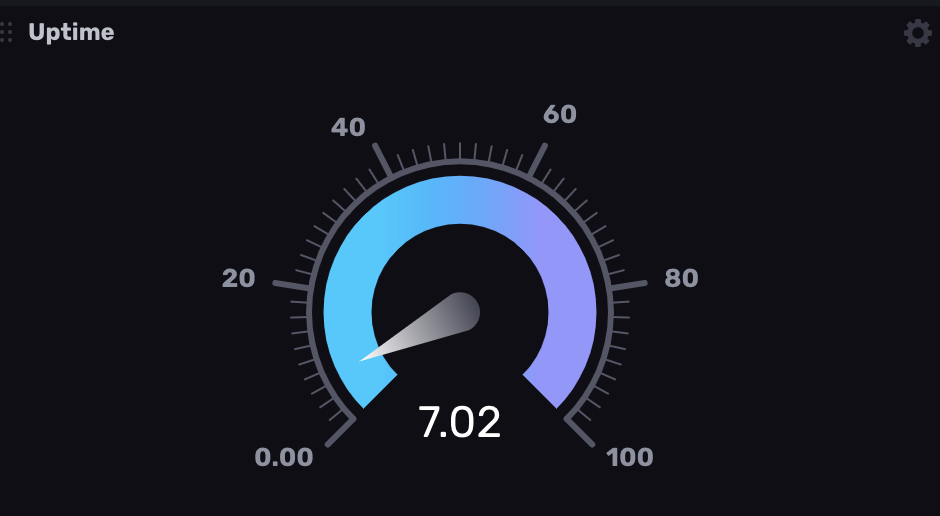
Gauge example

Select the Gauge option from the visualization dropdown in the upper left.

Gauge behavior

The gauge visualization displays a single numeric data point within a defined spectrum (default is 0-100). It uses the latest point in the first table (or series) returned by the query.

Queries should return one table

Flux does not guarantee the order in which tables are returned. If a query returns multiple tables (or series), the table order can change between query executions and result in the Gauge displaying inconsistent data. For consistent results, the Gauge query should return a single table.

Gauge Controls

To view Gauge controls, click Customize next to the visualization dropdown.

  • Value Prefix: Prefix to add to the gauge value.
  • Value Suffix: Suffix to add to the gauge value.
  • Axis Prefix: Prefix to add to the gauge axis.
  • Axis Suffix: Suffix to add to the gauge axis.
  • Decimal Places: The number of decimal places to display for the gauge.
    • Auto or Custom: Enable or disable auto-setting.
Colorized Thresholds
  • Add a Threshold: Change the color of the gauge based on the current value.
    • Minimum: Enter the minimum value at which the gauge should appear in the selected color. Choose a color from the dropdown menu next to the value.
    • Maximum: Enter the maximum value at which the gauge should appear in the selected color. Choose a color from the dropdown menu next to the value.

Gauge examples

Gauge visualizations are useful for showing the current value of a metric and displaying where it falls within a spectrum.

Steam pressure gauge

The following example queries sensor data that tracks the pressure of steam pipes in a facility and displays it as a gauge.

Query pressure data from a specific sensor
from(bucket: "example-bucket")
    |> range(start: -1m)
    |> filter(fn: (r) => r._measurement == "steam-sensors" and r._field == "psi" <INVALID_OP> r.sensorID == "a211i")
Visualization options for pressure gauge
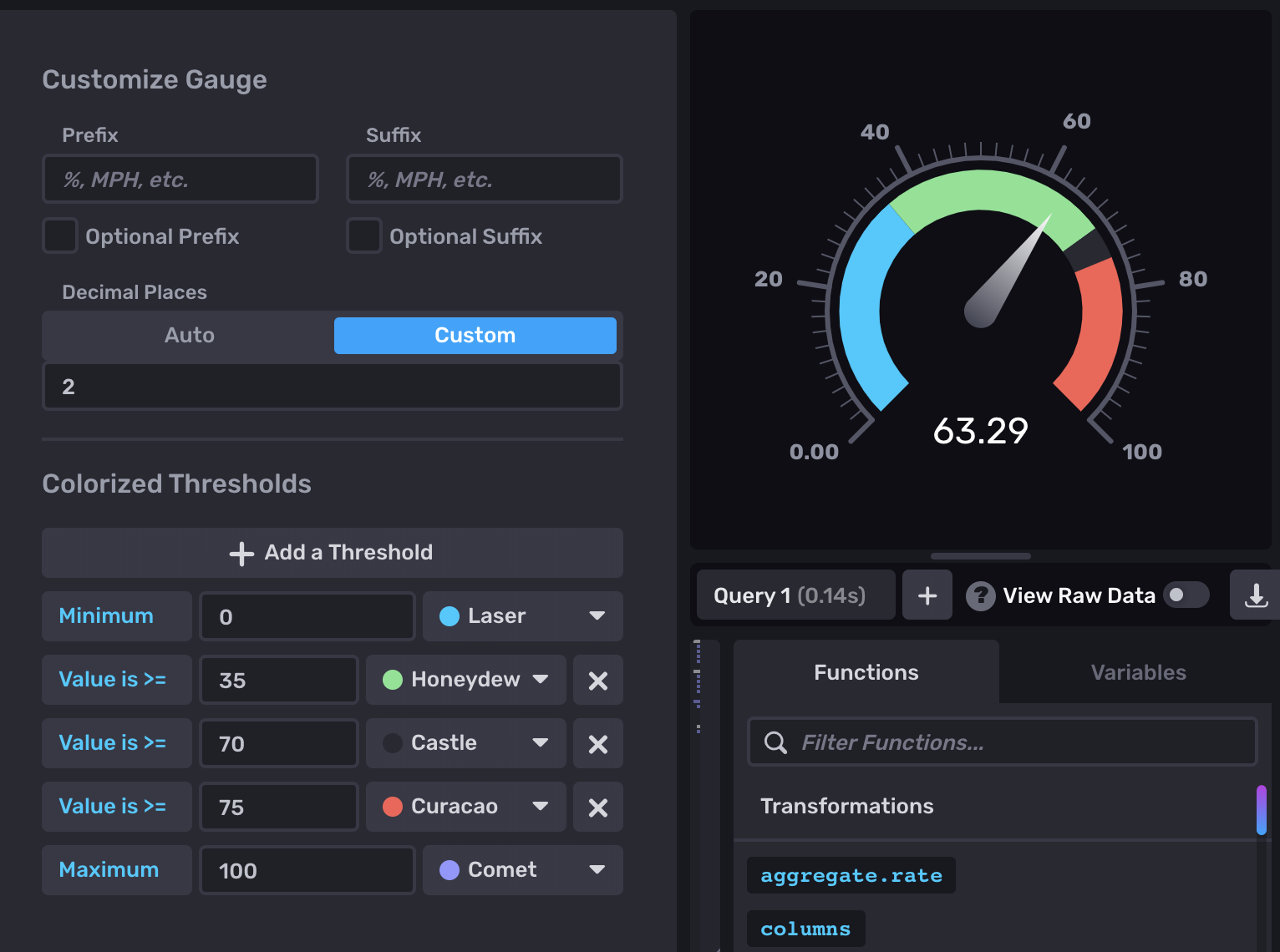
Pressure gauge example

Was this page helpful?

Thank you for your feedback!


InfluxDB OSS 2.9.0: API tokens are hashed by default

Stronger token security in InfluxDB OSS 2.9.0 — tokens are hashed on disk by default. Existing tokens are hashed on first startup and can’t be recovered afterward. Capture any plaintext tokens you still need before you upgrade.

View InfluxDB OSS 2.9.0 release notes

Hashed tokens authenticate exactly like unhashed tokens — clients and integrations keep working.

Also new in 2.9.0:

  • Configurable backup compression
  • Restore support for backups containing hashed tokens
  • Tighter Edge Data Replication queue validation
  • Flux upgrade
  • Compaction reliability improvements

Key enhancements in Explorer 1.8

Explorer 1.8 is now available with streaming data subscriptions (beta), line protocol preview, and query history & saved queries.

View Explorer 1.8 release notes

Explorer 1.8 includes new features and improvements that make it easier to ingest, explore, and manage data.

Highlights:

  • Streaming data subscriptions (beta): Stream data into Explorer from MQTT, Kafka, and AMQP sources.
  • Line protocol preview: Preview line protocol, schema, and parse errors before data is written.
  • Custom sample data: Generate custom sample datasets with line protocol and schema preview.
  • Query history and saved queries: Browse query history and save/re-run named queries.
  • Retention period management: Set, update, or clear retention periods on databases and tables.

For more details, see Explorer 1.8 release notes

InfluxDB 3.9: Performance upgrade preview

InfluxDB 3 Enterprise 3.9 includes a beta of major performance upgrades with faster single-series queries, wide-and-sparse table support, and more.

InfluxDB 3 Enterprise 3.9 includes a beta of major performance and feature updates.

Key improvements:

  • Faster single-series queries
  • Consistent resource usage
  • Wide-and-sparse table support
  • Automatic distinct value caches for reduced latency with metadata queries

Preview features are subject to breaking changes.

For more information, see:

Telegraf Enterprise now in public beta

Get early access to the Telegraf Controller and provide feedback to help shape the future of Telegraf Enterprise.

See the Blog Post

The upcoming Telegraf Enterprise offering is for organizations running Telegraf at scale and is comprised of two key components:

  • Telegraf Controller: A control plane (UI + API) that centralizes Telegraf configuration management and agent health visibility.
  • Telegraf Enterprise Support: Official support for Telegraf Controller and Telegraf plugins.

Join the Telegraf Enterprise beta to get early access to the Telegraf Controller and provide feedback to help shape the future of Telegraf Enterprise.

For more information:

Telegraf Controller v0.0.7-beta now available

Telegraf Controller v0.0.7-beta is now available with new features, improvements, bug fixes, and an important breaking change.

View the release notes
Download Telegraf Controller v0.0.7-beta

InfluxDB Docker latest tag changing to InfluxDB 3 Core

On May 27, 2026, the latest tag for InfluxDB Docker images will point to InfluxDB 3 Core. To avoid unexpected upgrades, use specific version tags in your Docker deployments.

If using Docker to install and run InfluxDB, the latest tag will point to InfluxDB 3 Core. To avoid unexpected upgrades, use specific version tags in your Docker deployments. For example, if using Docker to run InfluxDB v2, replace the latest version tag with a specific version tag in your Docker pull command–for example:

docker pull influxdb:2