---
title: Use LibreDB Studio with InfluxDB OSS
description: Use LibreDB Studio, an open source web-based database IDE, to browse buckets and run read-only InfluxQL queries against InfluxDB OSS v2.
url: https://docs.influxdata.com/influxdb/v2/tools/libredb-studio/
estimated_tokens: 1582
product: InfluxDB OSS v2
version: v2
publisher: InfluxData
canonical: https://docs.influxdata.com/influxdb/v2/tools/libredb-studio/
date: '2026-11-02T08:27:33-06:00'
lastmod: '2026-11-02T08:27:33-06:00'
---
This page documents an earlier version of InfluxDB OSS.[InfluxDB 3 Core](/influxdb3/core/) is the latest stable version.
> [!Important]
> #### API token hashing is enabled by default in InfluxDB OSS 2.9.0
>
> Stronger token security: tokens are stored as hashes on disk, so a
> copy of the database file doesn’t expose usable tokens. Existing
> tokens are hashed on first startup and the original strings can’t
> be recovered afterward — **capture any plaintext tokens you still
> need before you upgrade**.
>
> For more information, see [Token hashing](/influxdb/v2/admin/tokens/#token-hashing).
Use [LibreDB Studio](https://github.com/libredb/libredb-studio), an open source
(MIT) web-based database IDE, to browse the buckets in InfluxDB OSS v2,
run InfluxQL queries, and chart the results.
LibreDB Studio queries InfluxDB through the[InfluxDB 1.x compatibility API](/influxdb/v2/api-guide/influxdb-1x/)and reads each bucket through its[DBRP mapping](/influxdb/v2/query-data/influxql/dbrp/).
LibreDB Studio is read-only on InfluxDB.
It runs only `SELECT`, `SHOW`, and `EXPLAIN` statements and refuses any other statement before it reaches InfluxDB.
It doesn’t run Flux.
The examples on this page use the `get-started` bucket and the sample home sensor data from[Get started writing data](/influxdb/v2/get-started/write/).
* [Create a read-only token](#create-a-read-only-token)
* [Start LibreDB Studio](#start-libredb-studio)
* [Connect to InfluxDB](#connect-to-influxdb)
* [Query data](#query-data)
* [Chart query results](#chart-query-results)
## Create a read-only token
LibreDB Studio needs an [API token](/influxdb/v2/admin/tokens/) with read access to the buckets you want to query.
To create a token that can only read the `get-started` bucket,
use the [`influx auth create` command](/influxdb/v2/reference/cli/influx/auth/create/):
```sh
influx auth create \
--org ORG_NAME \
--read-bucket BUCKET_ID \
--description "LibreDB Studio read-only"
```
Replace the following:
* `ORG_NAME`: your organization name
* `BUCKET_ID`: the ID of the bucket to read.
To find it, run `influx bucket list --name get-started`.
Copy the token from the command output.
## Start LibreDB Studio
Run the LibreDB Studio Docker image:
```sh
docker run --name libredb-studio -p 3000:3000 ghcr.io/libredb/libredb-studio:latest
```
On first start, LibreDB Studio prints the admin email and a generated password to the container log.
To view them, run `docker logs libredb-studio`.
1. Open `http://localhost:3000`.
2. Sign in with those credentials.
The host name you enter in the next section must resolve from inside the LibreDB Studio container,
where `localhost` is the container itself:
* If InfluxDB runs in a Docker container, start LibreDB Studio on the same Docker network
(`docker run --network NETWORK_NAME ...`) and use the InfluxDB container name as the host.
* If InfluxDB runs directly on a Linux host, start LibreDB Studio with `--network host` instead of `-p 3000:3000`and use `localhost` as the host.
## Connect to InfluxDB
Use the InfluxQL database name from the bucket’s database and retention policy (DBRP) mapping.[List DBRP mappings](/influxdb/v2/query-data/influxql/dbrp/#list-dbrp-mappings) to find the database name and retention policy for the bucket you want to query.
For the `get-started` bucket from [Get started writing data](/influxdb/v2/get-started/write/),
the virtual mapping uses `get-started` as the database name and `autogen` as the default retention policy.
A bucket named `db/rp` instead maps to database `db` and retention policy `rp`.
Explicit DBRP mappings can override virtual mappings, so verify the mapping before connecting.
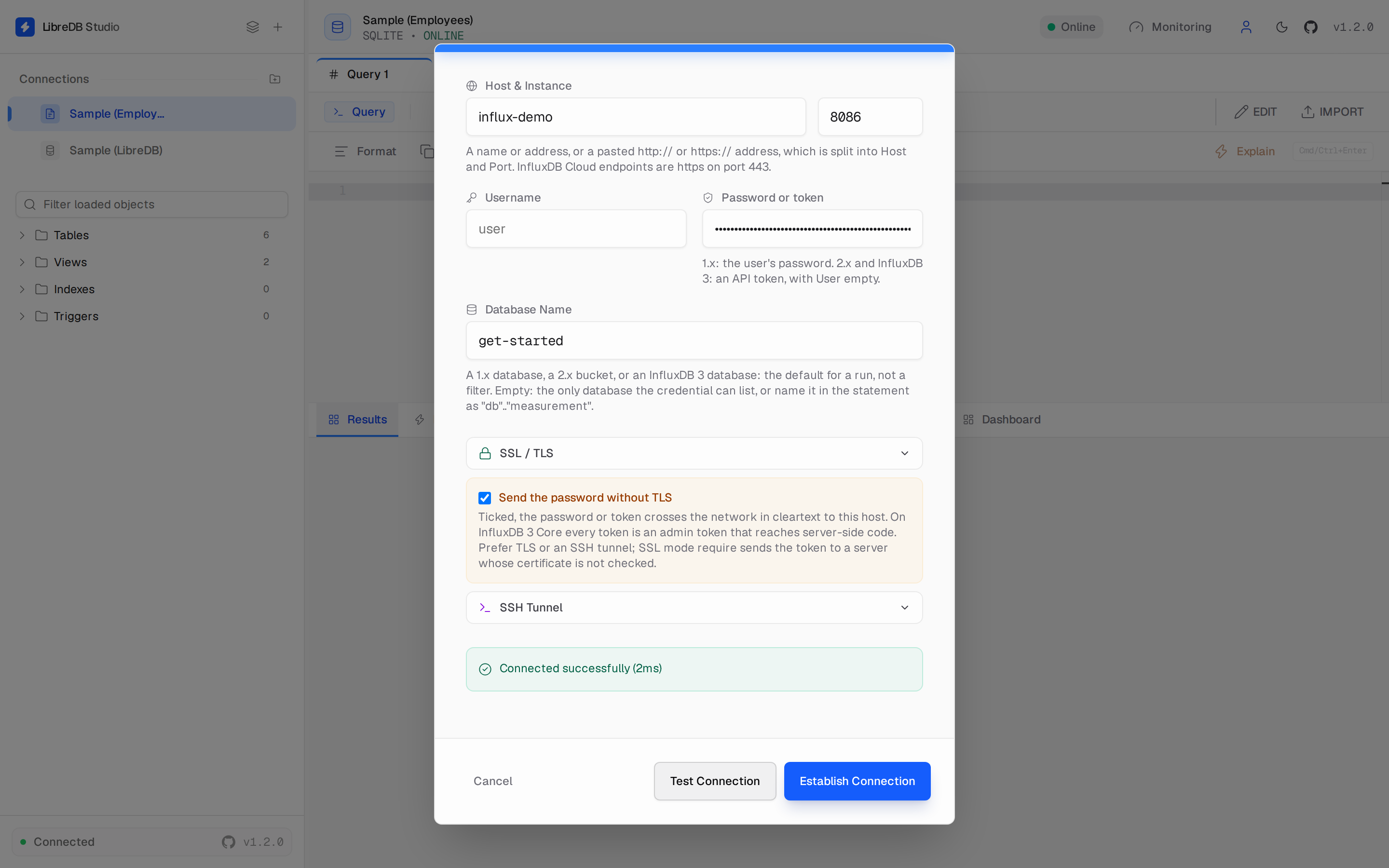
1. In the LibreDB Studio sidebar, click **+** to add a connection.
2. Select **InfluxDB (InfluxQL)**.
3. Enter the following:
* **Host**: the InfluxDB host name, for example `localhost`
* **Port**: `8086`
* **Username**: leave empty
* **Password or token**: the read-only token you created
* **Database Name**: the mapped InfluxQL database name, for example `get-started` when using the virtual mapping
4. If the host isn’t `localhost` and InfluxDB doesn’t use TLS,
LibreDB Studio refuses to send the token in cleartext.
Configure **SSL / TLS**, use an **SSH Tunnel**, or select **Send the password without TLS** to accept that risk.
5. Click **Test Connection**.
6. Click **Establish Connection**.
 ## Query data
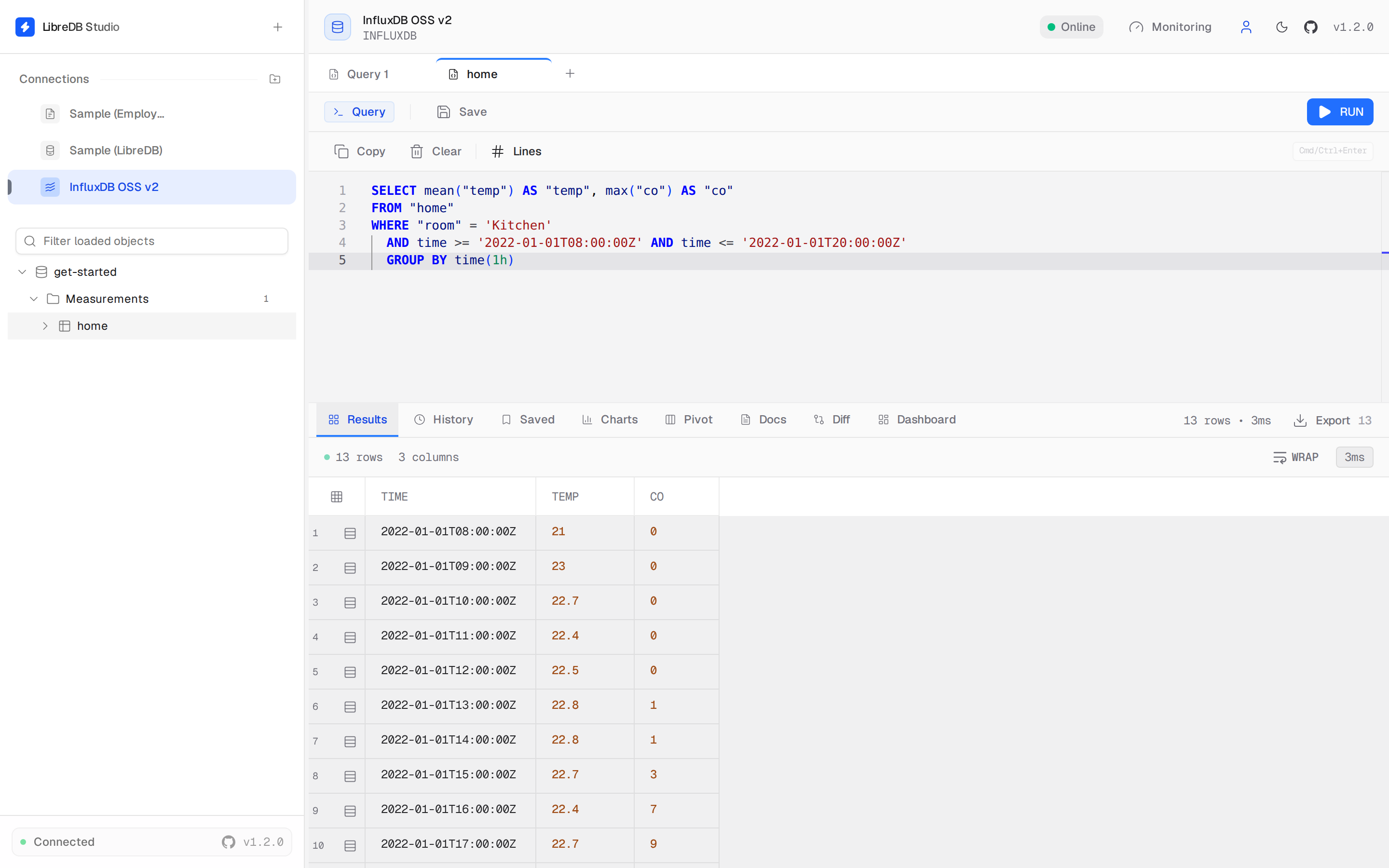
The sidebar lists the bucket and its measurements.
Click a measurement to open a query tab with a starter `SELECT` statement.
1. Enter an [InfluxQL](/influxdb/v2/query-data/influxql/) query.
2. Click **Run**.
For example, the following query returns the hourly mean temperature and maximum carbon monoxide
reading in the kitchen from the sample data:
```sql
SELECT mean("temp") AS "temp", max("co") AS "co"
FROM "home"
WHERE "room" = 'Kitchen'
AND time >= '2022-01-01T08:00:00Z' AND time <= '2022-01-01T20:00:00Z'
GROUP BY time(1h)
```
 To query another mapped database using its default retention policy,
use `"DATABASE".."MEASUREMENT"` in the `FROM` clause.
To query a non-default retention policy, use `"DATABASE"."RETENTION_POLICY"."MEASUREMENT"`.
Replace `DATABASE` and `RETENTION_POLICY` with the names from the bucket’s[DBRP mapping](/influxdb/v2/query-data/influxql/dbrp/#list-dbrp-mappings),
and replace `MEASUREMENT` with the measurement name.
Your token must have read access to the mapped bucket.
## Chart query results
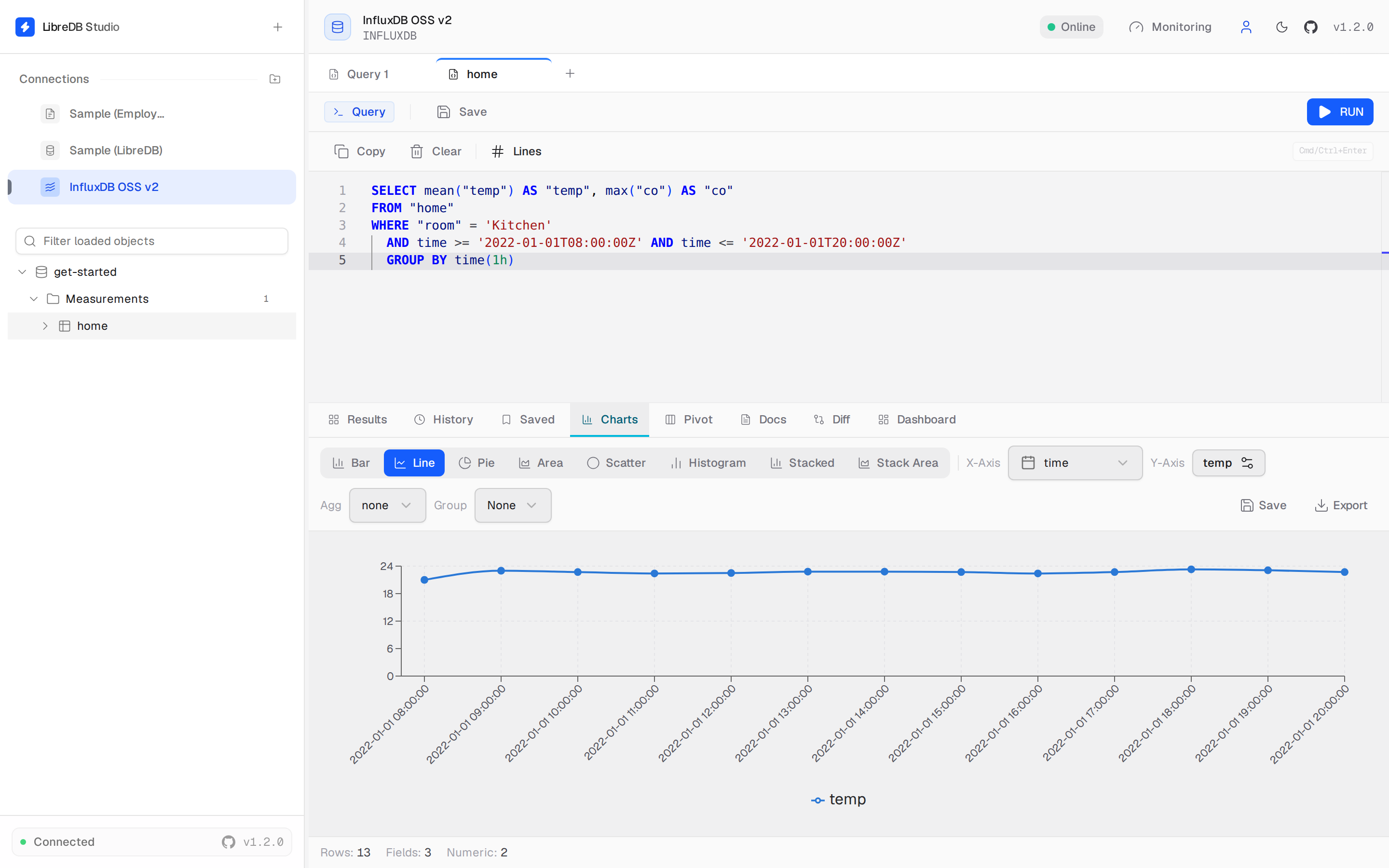
1. Run a query.
2. Select the **Charts** tab.
3. Select a chart type.
4. Set **X-Axis** to `time`.
5. Set **Y-Axis** to a field.
 #### Related
* [LibreDB Studio on GitHub](https://github.com/libredb/libredb-studio)
* [Query data with InfluxQL](/influxdb/v2/query-data/influxql/)
* [Manage DBRP mappings](/influxdb/v2/query-data/influxql/dbrp/)
[InfluxQL](/influxdb/v2/tags/influxql/)[query](/influxdb/v2/tags/query/)[visualization](/influxdb/v2/tags/visualization/)